> ## Documentation Index
> Fetch the complete documentation index at: https://magicpatterns.mintlify.site/docs/llms.txt
> Use this file to discover all available pages before exploring further.
# Navigating
> Getting around the Magic Patterns canvas
 ## Tools
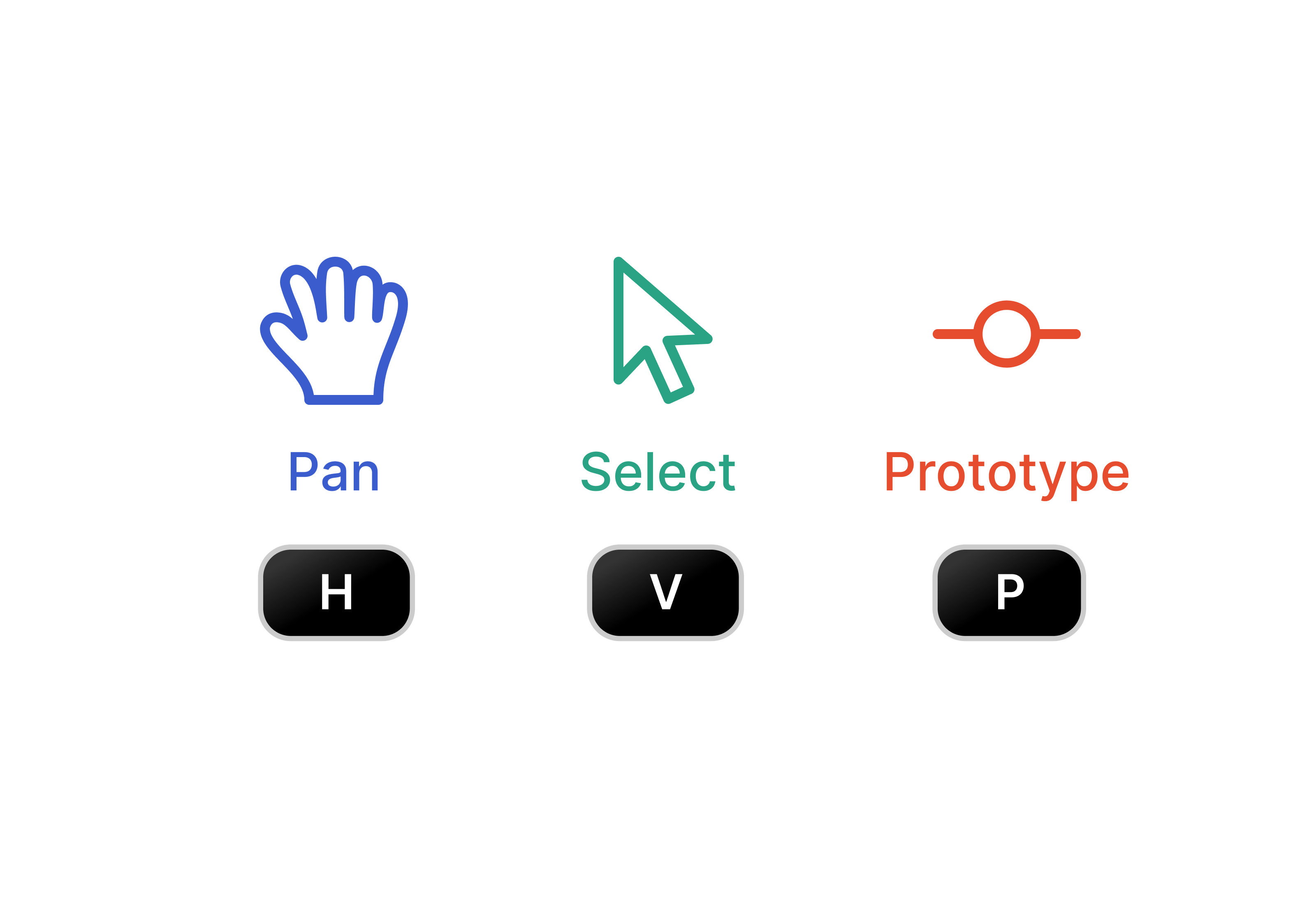
The Magic Patterns canvas has three tools:
**Select**: Use the select tool to click, drag, and
drag elements.
**Pan**: Use the pan tool to move the canvas around.
**Prototype**: Use the Prototype tool to connect elements
together.
You can switch between these modes by clicking the corresponding button in the navigation bar or using the `V`, `H`, and `P` hotkeys.
Hold the `Space` key to temporarily switch to the pan tool.
## Centering the Canvas
It can be easy to get lost in the canvas.
* Click on a screen's name in the side navigation bar to center the canvas on that screen
* Use the `Zoom to Fit` button to bring all screens on that current page into view
## Reordering Folders and Chats
To move a chat from one folder to another, simply use your keyboard’s copy and paste commands. Select the chat you want to move, press `Cmd/Ctrl + C` to copy, navigate to the destination folder, and press `Cmd/Ctrl + V` to paste.
## Tools
The Magic Patterns canvas has three tools:
**Select**: Use the select tool to click, drag, and
drag elements.
**Pan**: Use the pan tool to move the canvas around.
**Prototype**: Use the Prototype tool to connect elements
together.
You can switch between these modes by clicking the corresponding button in the navigation bar or using the `V`, `H`, and `P` hotkeys.
Hold the `Space` key to temporarily switch to the pan tool.
## Centering the Canvas
It can be easy to get lost in the canvas.
* Click on a screen's name in the side navigation bar to center the canvas on that screen
* Use the `Zoom to Fit` button to bring all screens on that current page into view
## Reordering Folders and Chats
To move a chat from one folder to another, simply use your keyboard’s copy and paste commands. Select the chat you want to move, press `Cmd/Ctrl + C` to copy, navigate to the destination folder, and press `Cmd/Ctrl + V` to paste.