> ## Documentation Index
> Fetch the complete documentation index at: https://magicpatterns.mintlify.site/docs/llms.txt
> Use this file to discover all available pages before exploring further.
# Host on a Custom Domain
> Connect your own domain to your Magic Patterns design
Don't own a domain yet? Use a [Custom Publish
URL](/documentation/publishing/publish-url) to publish instantly without any
setup.
## How to Connect Your Domain
### First, buy your domain
You must own your domain, usually purchased from a domain registrar. There are many domain registrars, but examples include: Namecheap, GoDaddy, Squarespace, Cloudflare, etc.
Once you own your domain:
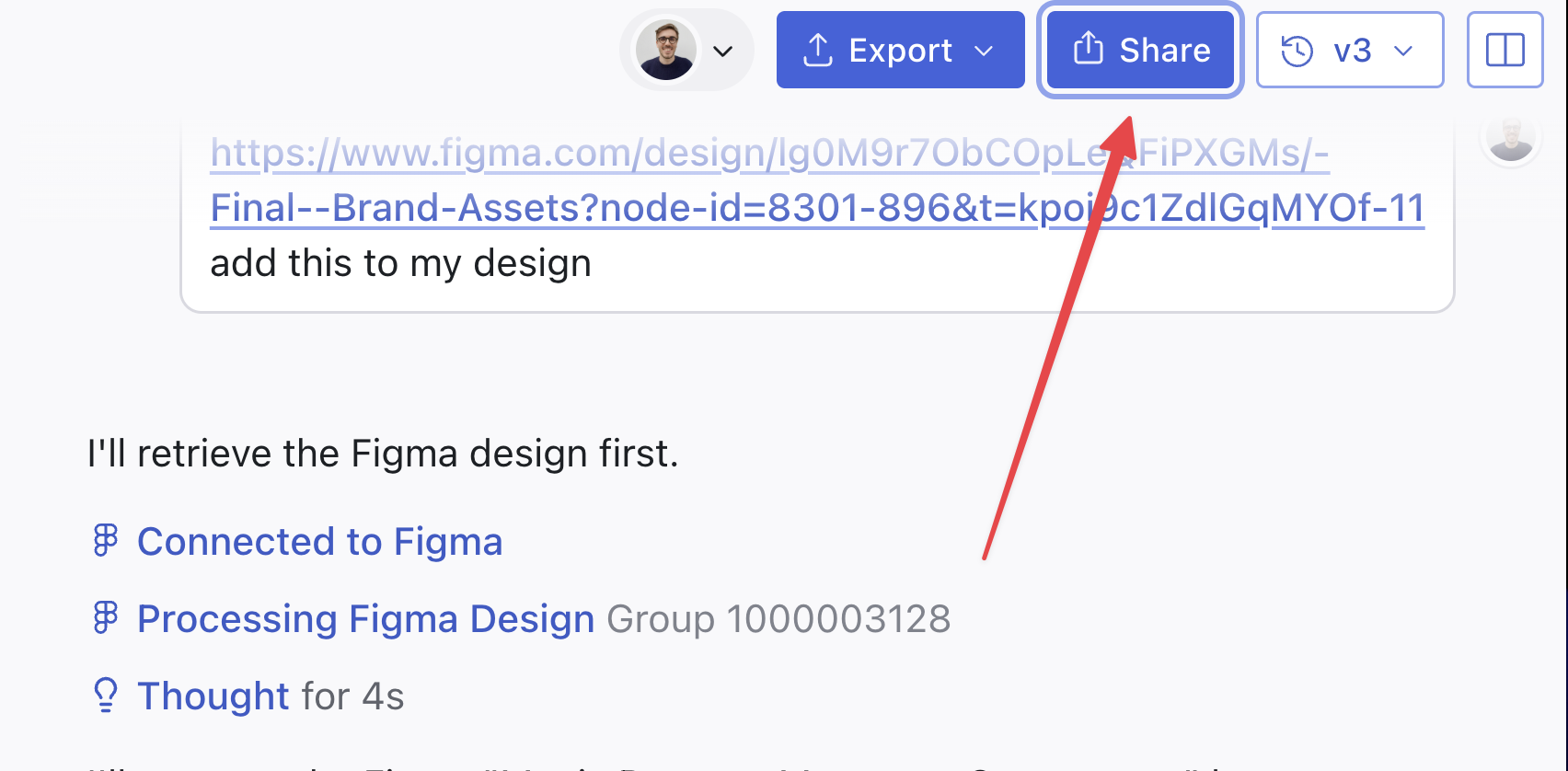
Click the Share button at the top of the editor.
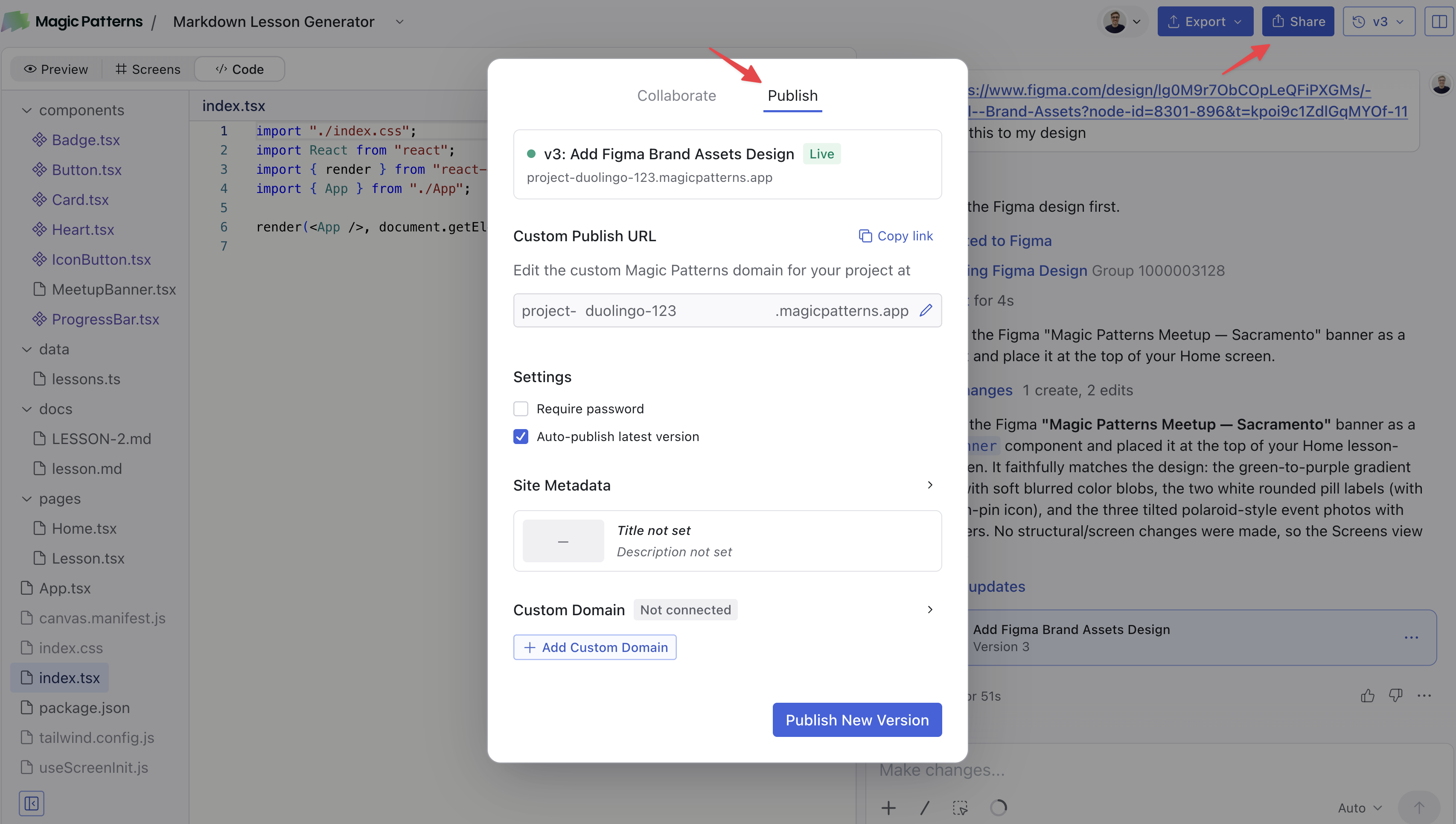
 In the Share menu, open the Publish modal.
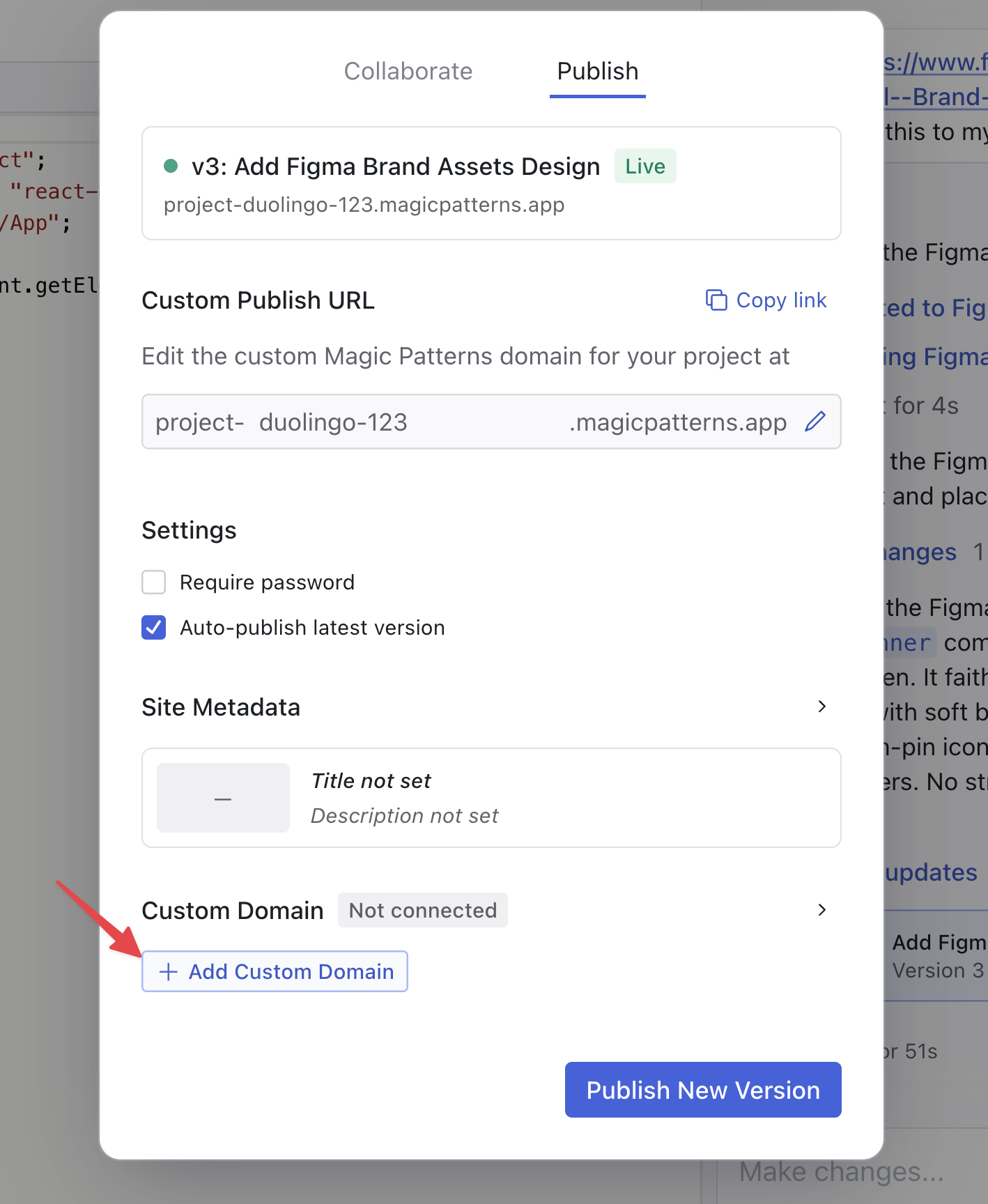
 At the bottom of the Publish modal, click "Add a custom domain".
 Go to your domain registrar (GoDaddy, Namecheap, Cloudflare, etc.) and find DNS settings (usually under "DNS Management" or "Advanced DNS").
Follow the instructions below for your domain type:
**For a root domain** (`example.com`):
First, delete ALL existing A records for your domain. If you skip this step, your domain won't work.
Add an A record with these settings:
| TYPE | NAME | VALUE |
| ---- | ---- | --------------- |
| A | @ | 149.248.202.188 |
The @ symbol means "root domain". In some registrars (like Wix), "@" is entered as a blank space.
**For a subdomain** (`www.example.com`, `blog.example.com`):
Add a CNAME record with these settings:
| TYPE | NAME | VALUE |
| ----- | ---- | ----------------- |
| CNAME | www | magicpatterns.dev |
Replace `www` with your subdomain. For example, use `blog` for `blog.example.com` or `app` for `app.example.com`.
In other words, if you want to connect `blog.example.com`, you would add:
| TYPE | NAME | VALUE |
| ----- | ---- | ----------------- |
| CNAME | blog | magicpatterns.dev |
DNS changes can take 5 minutes to 48 hours to propagate globally.
**Check if it's ready:**
* **For root domains:** Go to [whatsmydns.net/A](https://www.whatsmydns.net/?t=A), enter your domain, and check that it shows `149.248.202.188`
* **For subdomains:** Go to [whatsmydns.net/CNAME](https://www.whatsmydns.net/?t=CNAME), enter your subdomain, and check that it shows `magicpatterns.dev`
Once DNS has propagated:
1. Enter your domain name in Magic Patterns (e.g., `example.com` or `www.example.com`)
2. Click "I have added DNS records"
3. Wait for verification
**Root Domain:**
Go to your domain registrar (GoDaddy, Namecheap, Cloudflare, etc.) and find DNS settings (usually under "DNS Management" or "Advanced DNS").
Follow the instructions below for your domain type:
**For a root domain** (`example.com`):
First, delete ALL existing A records for your domain. If you skip this step, your domain won't work.
Add an A record with these settings:
| TYPE | NAME | VALUE |
| ---- | ---- | --------------- |
| A | @ | 149.248.202.188 |
The @ symbol means "root domain". In some registrars (like Wix), "@" is entered as a blank space.
**For a subdomain** (`www.example.com`, `blog.example.com`):
Add a CNAME record with these settings:
| TYPE | NAME | VALUE |
| ----- | ---- | ----------------- |
| CNAME | www | magicpatterns.dev |
Replace `www` with your subdomain. For example, use `blog` for `blog.example.com` or `app` for `app.example.com`.
In other words, if you want to connect `blog.example.com`, you would add:
| TYPE | NAME | VALUE |
| ----- | ---- | ----------------- |
| CNAME | blog | magicpatterns.dev |
DNS changes can take 5 minutes to 48 hours to propagate globally.
**Check if it's ready:**
* **For root domains:** Go to [whatsmydns.net/A](https://www.whatsmydns.net/?t=A), enter your domain, and check that it shows `149.248.202.188`
* **For subdomains:** Go to [whatsmydns.net/CNAME](https://www.whatsmydns.net/?t=CNAME), enter your subdomain, and check that it shows `magicpatterns.dev`
Once DNS has propagated:
1. Enter your domain name in Magic Patterns (e.g., `example.com` or `www.example.com`)
2. Click "I have added DNS records"
3. Wait for verification
**Root Domain:**
 **Subdomain:**
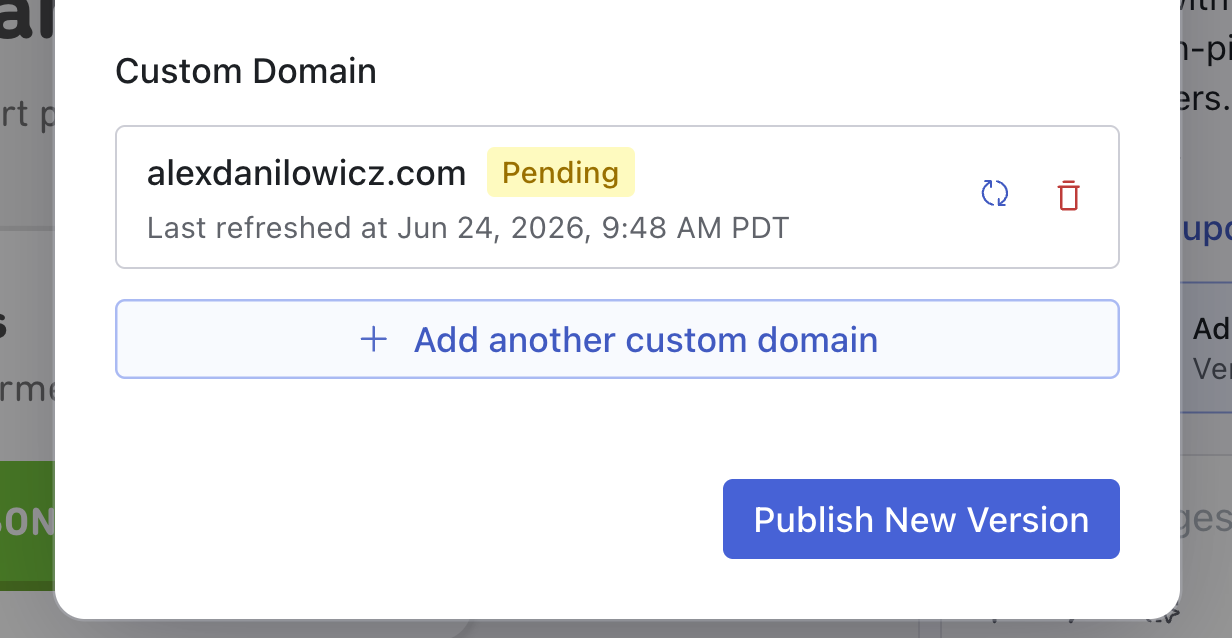
 Once verified, you can manage your settings by clicking on the Publish button again.
From here, you can also publish another version of your design.
## Connecting Multiple Domains
You can connect multiple domains to the same project. For example, you might want both:
* `example.com` (root domain)
* `www.example.com` (subdomain)
Simply add both DNS records and connect each domain in Magic Patterns using the "+" button in the Publish panel.
Once verified, you can manage your settings by clicking on the Publish button again.
From here, you can also publish another version of your design.
## Connecting Multiple Domains
You can connect multiple domains to the same project. For example, you might want both:
* `example.com` (root domain)
* `www.example.com` (subdomain)
Simply add both DNS records and connect each domain in Magic Patterns using the "+" button in the Publish panel.
 ## FAQ and Troubleshooting
Be sure to refresh or try a different browser or device if you just published your domain! Your browser will cache old versions!
Check these common issues:
1. **For root domains:** Did you delete ALL old A records? (most common issue)
2. Check your DNS at whatsmydns.net:
* For root domains: [Check A record](https://www.whatsmydns.net/?t=A) — should show `149.248.202.188`
* For subdomains: [Check CNAME record](https://www.whatsmydns.net/?t=CNAME) — should show `magicpatterns.dev`
* If it shows something different or "No record found", your DNS isn't set up correctly
3. Wait another few hours if changes were recent
Make sure you added a CNAME record (not an A record) for your subdomain:
| TYPE | NAME | VALUE |
| ----- | ---- | ----------------- |
| CNAME | www | magicpatterns.dev |
Replace `www` with your subdomain (e.g., `blog`, `app`, `portfolio`).
You can verify it's set up correctly at [whatsmydns.net/CNAME](https://www.whatsmydns.net/?t=CNAME) by entering your subdomain.
* Use an **A record** for root domains (`example.com`) - Use a **CNAME
record** for subdomains (`www.example.com`, `blog.example.com`) The Publish
panel in Magic Patterns will show you exactly which record type to use based
on whether you select "Root Domain" or "Subdomain".
Magic Patterns works with ALL DNS providers including GoDaddy, Namecheap,
Cloudflare, Google Domains, Squarespace, Wix, and any other provider.
DNS propagation typically takes between 30 minutes and 48 hours, depending on
your DNS provider and various internet factors. Most domains are verified
within a few hours.
You can disconnect your custom domain by clicking on the domain in the Publish
panel and selecting "Disconnect".
Yes! We automatically provision SSL certificates for all custom domains to
ensure your site is secure.
[Upgrade to a paid plan](https://www.magicpatterns.com/dashboard?dl=billing)
to remove the "Built with Magic Patterns" badge under the Metadata tab in the
Publish panel.
Your browser is likely caching the old version of your site. Try clearing your cache or opening it in incognito mode to see the latest updates.
## FAQ and Troubleshooting
Be sure to refresh or try a different browser or device if you just published your domain! Your browser will cache old versions!
Check these common issues:
1. **For root domains:** Did you delete ALL old A records? (most common issue)
2. Check your DNS at whatsmydns.net:
* For root domains: [Check A record](https://www.whatsmydns.net/?t=A) — should show `149.248.202.188`
* For subdomains: [Check CNAME record](https://www.whatsmydns.net/?t=CNAME) — should show `magicpatterns.dev`
* If it shows something different or "No record found", your DNS isn't set up correctly
3. Wait another few hours if changes were recent
Make sure you added a CNAME record (not an A record) for your subdomain:
| TYPE | NAME | VALUE |
| ----- | ---- | ----------------- |
| CNAME | www | magicpatterns.dev |
Replace `www` with your subdomain (e.g., `blog`, `app`, `portfolio`).
You can verify it's set up correctly at [whatsmydns.net/CNAME](https://www.whatsmydns.net/?t=CNAME) by entering your subdomain.
* Use an **A record** for root domains (`example.com`) - Use a **CNAME
record** for subdomains (`www.example.com`, `blog.example.com`) The Publish
panel in Magic Patterns will show you exactly which record type to use based
on whether you select "Root Domain" or "Subdomain".
Magic Patterns works with ALL DNS providers including GoDaddy, Namecheap,
Cloudflare, Google Domains, Squarespace, Wix, and any other provider.
DNS propagation typically takes between 30 minutes and 48 hours, depending on
your DNS provider and various internet factors. Most domains are verified
within a few hours.
You can disconnect your custom domain by clicking on the domain in the Publish
panel and selecting "Disconnect".
Yes! We automatically provision SSL certificates for all custom domains to
ensure your site is secure.
[Upgrade to a paid plan](https://www.magicpatterns.com/dashboard?dl=billing)
to remove the "Built with Magic Patterns" badge under the Metadata tab in the
Publish panel.
Your browser is likely caching the old version of your site. Try clearing your cache or opening it in incognito mode to see the latest updates.