> ## Documentation Index
> Fetch the complete documentation index at: https://magicpatterns.mintlify.site/docs/llms.txt
> Use this file to discover all available pages before exploring further.
# Templates
> Organize and reuse your designs with Templates
## What are Templates?
**Templates = Designs you can share with your team**
Example templates: Your company core dashboard homepage, settings page, etc
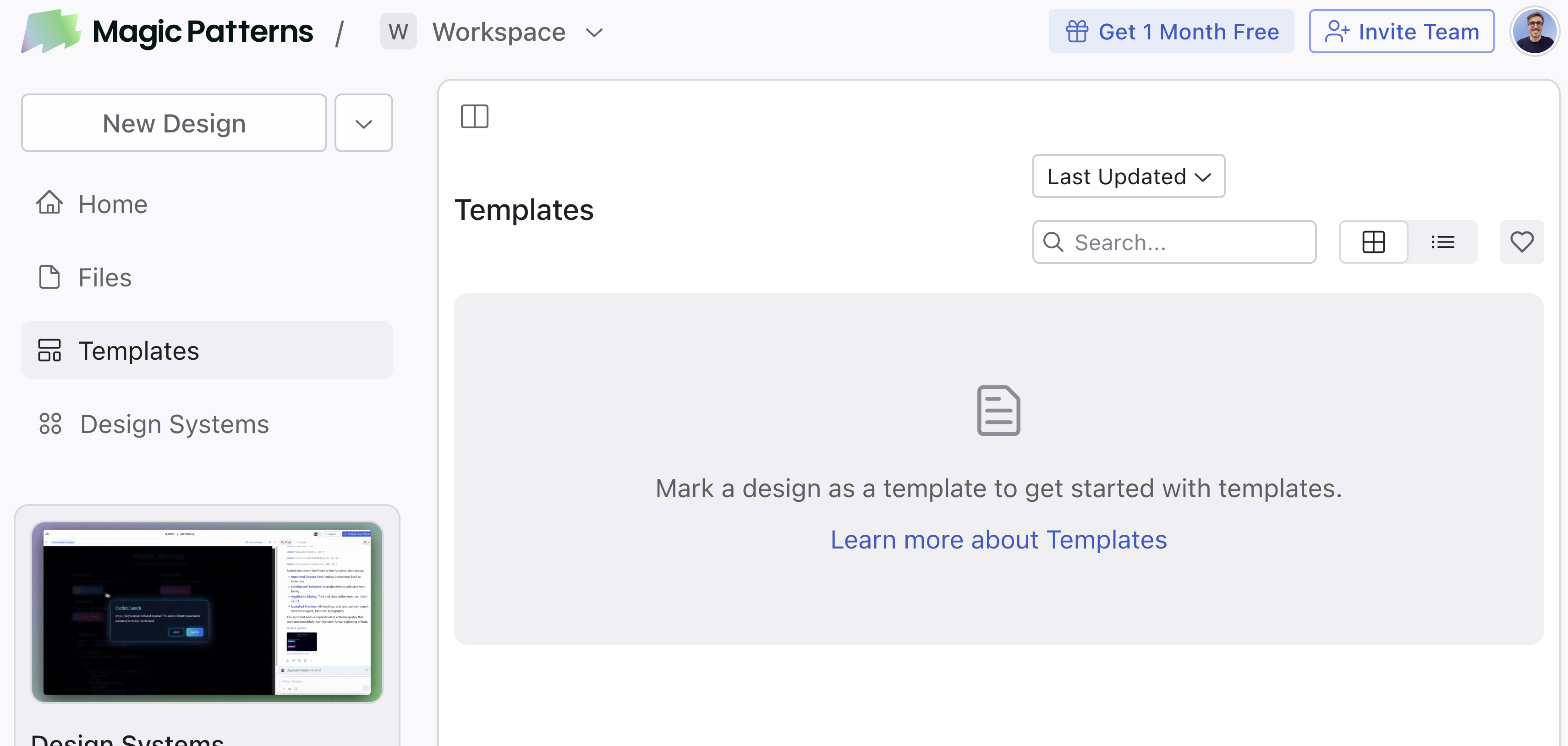
Templates help you organize your best designs and make them easy to reuse. Convert any design into a template, and it will appear in your Templates tab on the dashboard.
Templates are perfect for:
* Creating starting points
* Sharing reusable interactions with your team
* Standardizing common page types (landing pages, dashboards, forms, etc.)
## How to Guides
### How to Create a Template
1. Open the design you want to convert into a template
2. Click the dropdown next to the design name
3. Select **"Publish Template"** from the Actions menu
Your design is now a template and will appear in the Templates tab on your dashboard.
#### Share Templates with your workspace
1. Click **Share** in the top-right corner of the template.
2. Click **Invite Workspace**.
Once shared with the workspace, everyone included can see and fork the template under their "Templates" in the dashboard.
### How to Fork from a Template
You can fork from templates in two ways:
**Option 1: Fork from the dashboard**
1. Navigate to the Templates tab on your dashboard
2. Right-click on the template you want to fork
3. Select **"Fork"** from the context menu
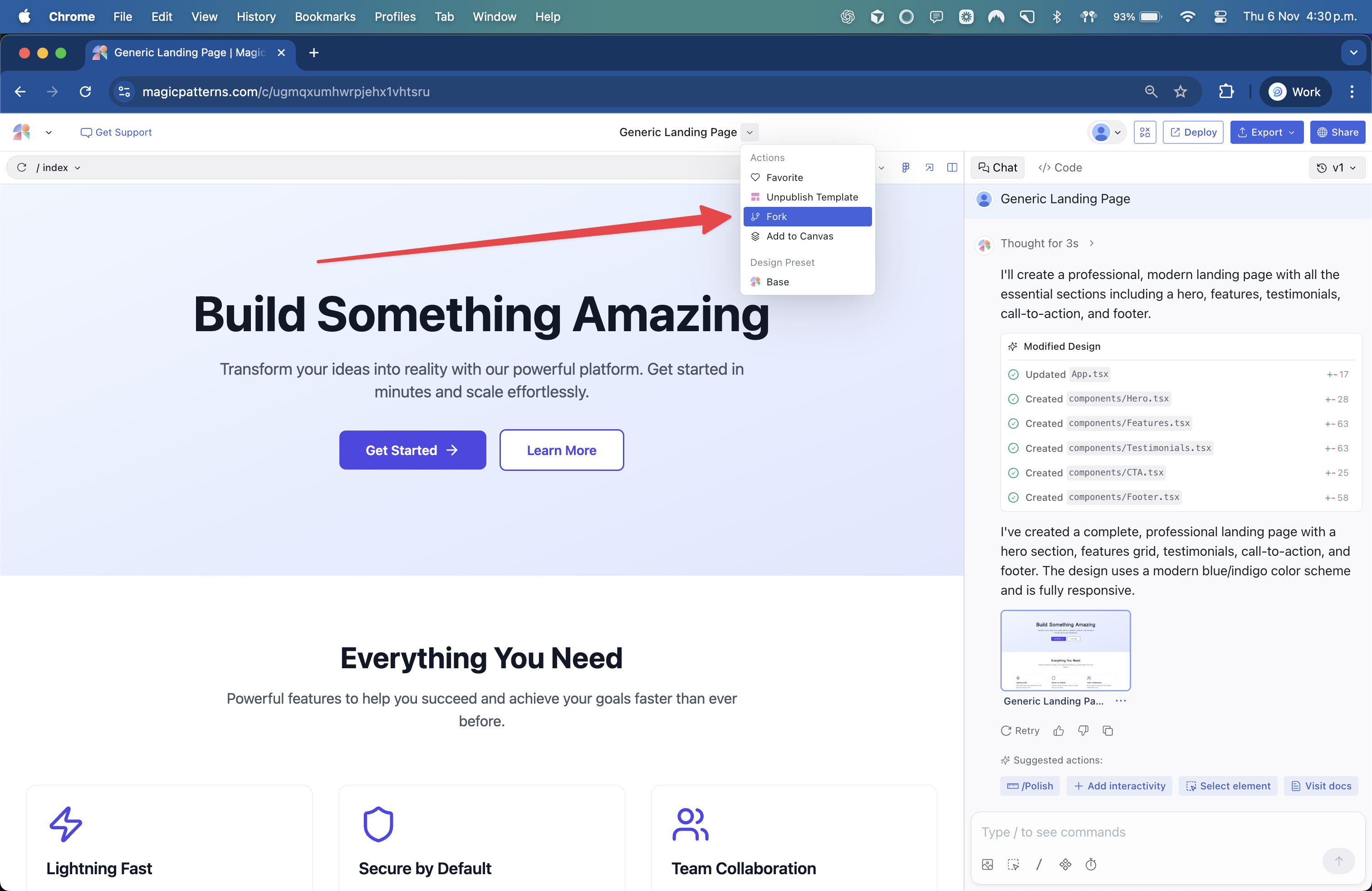
**Option 2: Fork from inside the template**
1. Open the template you want to fork
2. Click the dropdown next to the template name
3. Select **"Fork"** from the Actions menu
A new design will open in a separate tab. It will be titled "\[Template Name] - Forked" by default, but you can rename it anytime. You are free to edit the fork however you like.
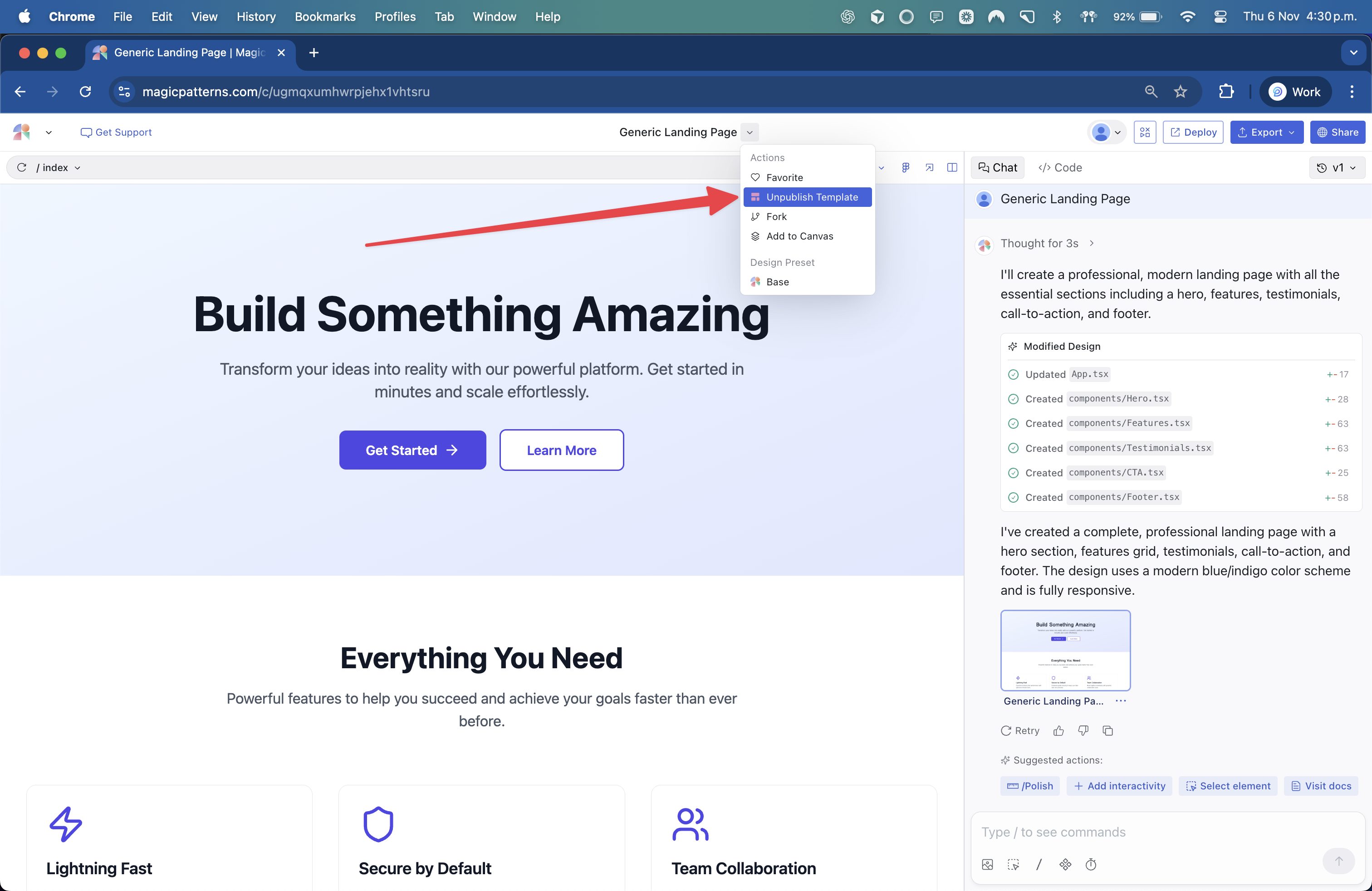
### How to Unpublish a Template
If you no longer want a design to appear as a template:
1. Open the template
2. Click the dropdown next to the template name
3. Select **"Unpublish Template"** from the Actions menu
The design will remain in your files but will no longer appear in the Templates tab.
## Video Guide
This topic is covered in our video lesson [Team Workflows and Sharing](/documentation/guide/team-workflows-and-sharing).
 1. Open the design you want to convert into a template
2. Click the dropdown next to the design name
3. Select **"Publish Template"** from the Actions menu
Your design is now a template and will appear in the Templates tab on your dashboard.
#### Share Templates with your workspace
1. Click **Share** in the top-right corner of the template.
2. Click **Invite Workspace**.
Once shared with the workspace, everyone included can see and fork the template under their "Templates" in the dashboard.
### How to Fork from a Template
You can fork from templates in two ways:
**Option 1: Fork from the dashboard**
1. Open the design you want to convert into a template
2. Click the dropdown next to the design name
3. Select **"Publish Template"** from the Actions menu
Your design is now a template and will appear in the Templates tab on your dashboard.
#### Share Templates with your workspace
1. Click **Share** in the top-right corner of the template.
2. Click **Invite Workspace**.
Once shared with the workspace, everyone included can see and fork the template under their "Templates" in the dashboard.
### How to Fork from a Template
You can fork from templates in two ways:
**Option 1: Fork from the dashboard**
 1. Navigate to the Templates tab on your dashboard
2. Right-click on the template you want to fork
3. Select **"Fork"** from the context menu
**Option 2: Fork from inside the template**
1. Navigate to the Templates tab on your dashboard
2. Right-click on the template you want to fork
3. Select **"Fork"** from the context menu
**Option 2: Fork from inside the template**
 1. Open the template you want to fork
2. Click the dropdown next to the template name
3. Select **"Fork"** from the Actions menu
A new design will open in a separate tab. It will be titled "\[Template Name] - Forked" by default, but you can rename it anytime. You are free to edit the fork however you like.
### How to Unpublish a Template
1. Open the template you want to fork
2. Click the dropdown next to the template name
3. Select **"Fork"** from the Actions menu
A new design will open in a separate tab. It will be titled "\[Template Name] - Forked" by default, but you can rename it anytime. You are free to edit the fork however you like.
### How to Unpublish a Template
 If you no longer want a design to appear as a template:
1. Open the template
2. Click the dropdown next to the template name
3. Select **"Unpublish Template"** from the Actions menu
The design will remain in your files but will no longer appear in the Templates tab.
## Video Guide
This topic is covered in our video lesson [Team Workflows and Sharing](/documentation/guide/team-workflows-and-sharing).
If you no longer want a design to appear as a template:
1. Open the template
2. Click the dropdown next to the template name
3. Select **"Unpublish Template"** from the Actions menu
The design will remain in your files but will no longer appear in the Templates tab.
## Video Guide
This topic is covered in our video lesson [Team Workflows and Sharing](/documentation/guide/team-workflows-and-sharing).