> ## Documentation Index
> Fetch the complete documentation index at: https://magicpatterns.mintlify.site/docs/llms.txt
> Use this file to discover all available pages before exploring further.
# Plan Mode
> Brainstorm and align on a change with the agent before any code is written.
`/Plan` is a chat mode that turns the agent into a planning partner. Instead of jumping straight into editing your design, the agent asks a couple of clarifying questions, drafts a short plan you can edit, and only writes code once you approve it.
Plan Mode uses credits because the AI is actively reasoning about your design.
Use it for larger changes, or any time you want to align on the approach (with yourself or a teammate) before the agent starts modifying files.
 ## How it works
Type `/` in the chat input (in the dashboard or the editor) and select **Plan**.
The agent usually replies with 1 to 3 multiple-choice questions to narrow down the request. The first option is the agent's recommendation. You can also dismiss the questions if you want the agent to go ahead with its best guess.
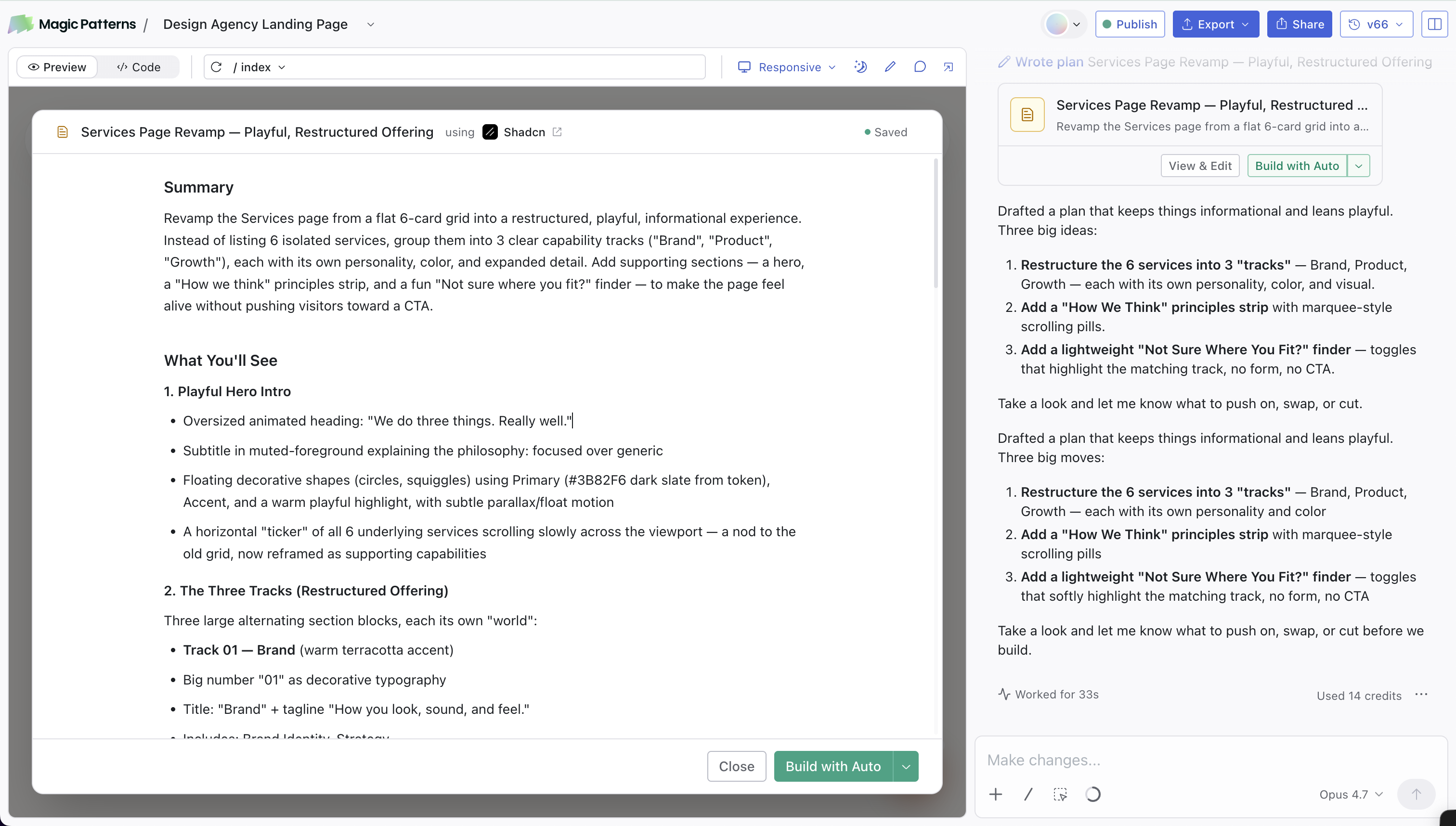
A plan editor opens over the design preview and streams in a short markdown plan with sections like **Summary**, **What You'll See**, and **User Flow**. Edit anything you want directly. Changes are auto-saved.
Click **Build with Auto** at the bottom of the plan editor (or pick a specific model from the dropdown). The agent switches out of Plan mode and starts implementing the plan.
## Read more
Tips, chat modes, skills, and prompting do's and don'ts.
## How it works
Type `/` in the chat input (in the dashboard or the editor) and select **Plan**.
The agent usually replies with 1 to 3 multiple-choice questions to narrow down the request. The first option is the agent's recommendation. You can also dismiss the questions if you want the agent to go ahead with its best guess.
A plan editor opens over the design preview and streams in a short markdown plan with sections like **Summary**, **What You'll See**, and **User Flow**. Edit anything you want directly. Changes are auto-saved.
Click **Build with Auto** at the bottom of the plan editor (or pick a specific model from the dropdown). The agent switches out of Plan mode and starts implementing the plan.
## Read more
Tips, chat modes, skills, and prompting do's and don'ts.