> ## Documentation Index
> Fetch the complete documentation index at: https://magicpatterns.mintlify.site/docs/llms.txt
> Use this file to discover all available pages before exploring further.
# Forking
> Use forking for debugging, collaboration, and to explore new ideas
## What is Forking?
**Fork = Create a copy of your design.**
Forking a design in Magic Patterns creates a new copy that works independently from the original. This is helpful when you want to:
* Explore new ideas without affecting your "main" design
* Create layout or flow variations
* Build on someone else's work without making changes to the original version.
* Debug issues by returning to a working version
## How to Guides
### How to Fork an Existing Design
You can fork any Design you own or one shared with you. Open the design you want to fork.
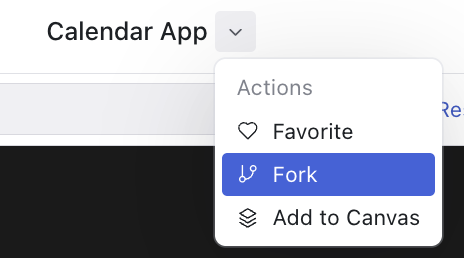
**Option 1: Fork from the title dropdown**
Click the dropdown next to the file name and select Fork.
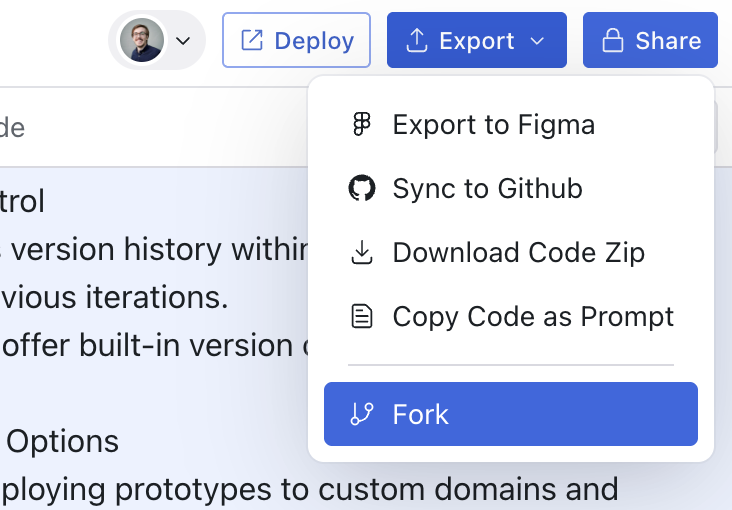
 **Option 2: Fork from the Export menu**
Click the Export button in the top right corner and choose Fork from the menu.
**Option 2: Fork from the Export menu**
Click the Export button in the top right corner and choose Fork from the menu.
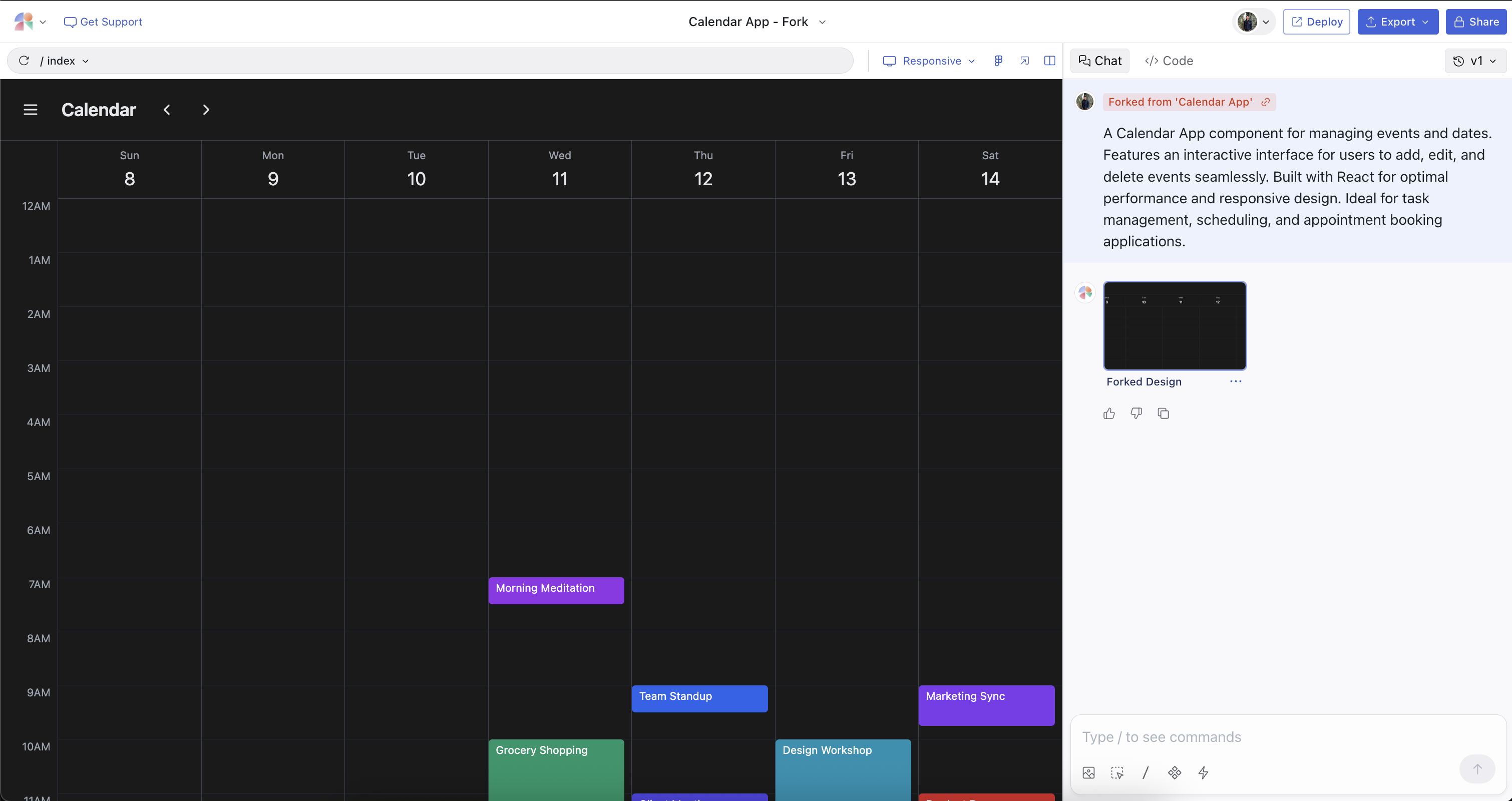
 A new design will open in a separate tab. It will be titled “\[Original Project Name] - Forked” by default, but you can rename it anytime. You are free to edit the fork however you like.
Want a clean slate? Forking clears your chat history and resets the AI
context.
### How to Fork from an Older Version
One of the most powerful features of forking is the ability to fork from a specific version of your design. This is particularly useful for debugging and cleaning up your AI context.
A new design will open in a separate tab. It will be titled “\[Original Project Name] - Forked” by default, but you can rename it anytime. You are free to edit the fork however you like.
Want a clean slate? Forking clears your chat history and resets the AI
context.
### How to Fork from an Older Version
One of the most powerful features of forking is the ability to fork from a specific version of your design. This is particularly useful for debugging and cleaning up your AI context.
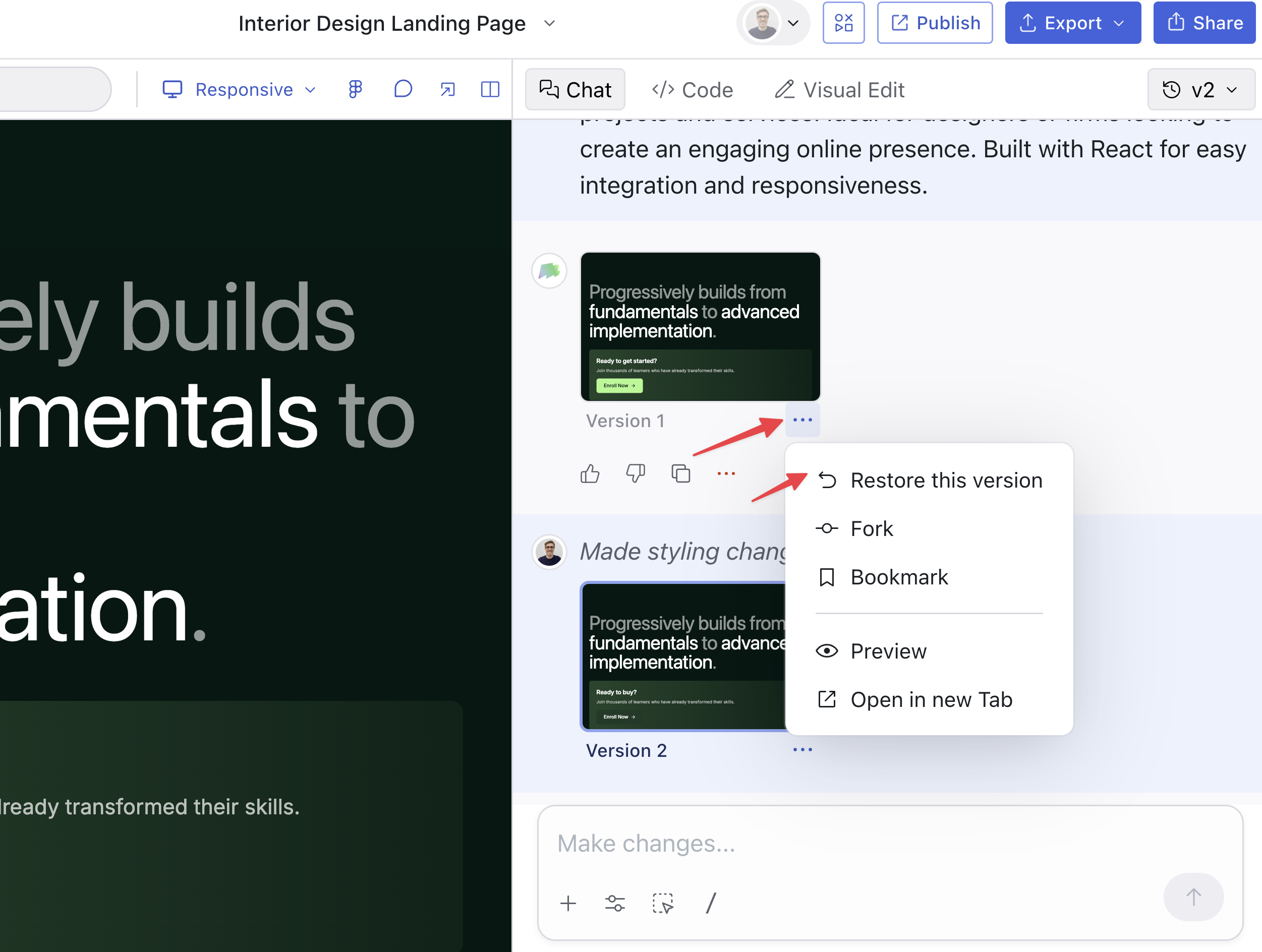 How to fork from a previous version:
1. Open the design you want to fork
2. Click on the versions dropdown
3. Click on the specific version you want to fork from
4. Once viewing that version, click the fork button (from title dropdown or Export menu)
5. A new design will be created based on that exact version
**Why fork from an older version:**
When you fork from an older version, the chat history from after that version
will not be included. You get a clean context window starting from that point.
* Debug issues: If your design broke after recent changes, fork from the last working version and start fresh
* Clean AI context: After many chat interactions, the AI context can get cluttered. Forking from a clean version gives you a fresh start with all the work intact
* Explore alternative paths: Try a different approach from a specific point without losing your current progress
* Recover from mistakes: If you went down the wrong path for several iterations, jump back to where things were working
## Other Ways to Fork
### How to Fork from a Canvas
1. Hover over the design you want to fork.
2. Right-click on it to open the context menu.
3. Select Fork Current Design.
This creates a new project based on the selected design only, without affecting the rest of the original canvas.
How to fork from a previous version:
1. Open the design you want to fork
2. Click on the versions dropdown
3. Click on the specific version you want to fork from
4. Once viewing that version, click the fork button (from title dropdown or Export menu)
5. A new design will be created based on that exact version
**Why fork from an older version:**
When you fork from an older version, the chat history from after that version
will not be included. You get a clean context window starting from that point.
* Debug issues: If your design broke after recent changes, fork from the last working version and start fresh
* Clean AI context: After many chat interactions, the AI context can get cluttered. Forking from a clean version gives you a fresh start with all the work intact
* Explore alternative paths: Try a different approach from a specific point without losing your current progress
* Recover from mistakes: If you went down the wrong path for several iterations, jump back to where things were working
## Other Ways to Fork
### How to Fork from a Canvas
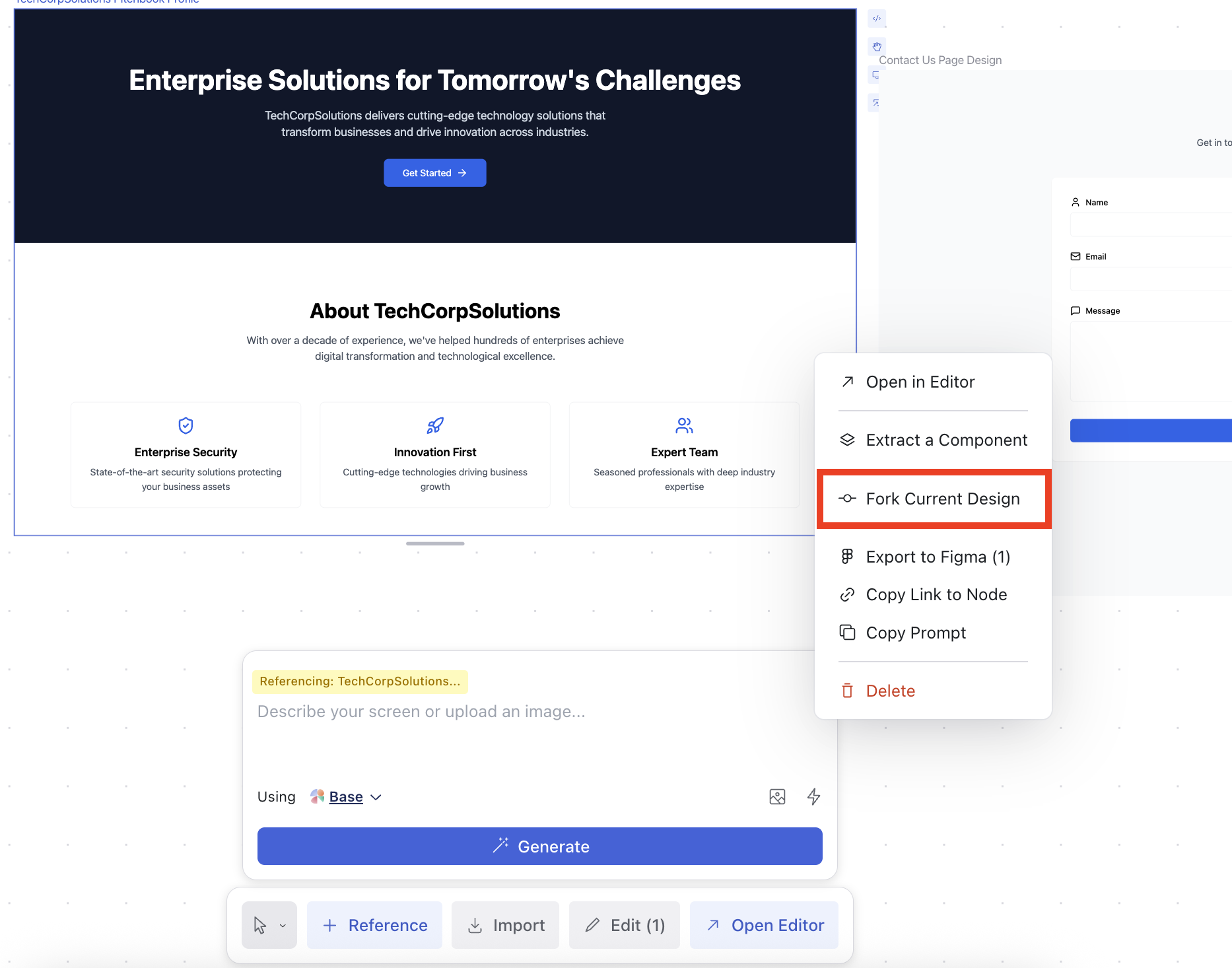
1. Hover over the design you want to fork.
2. Right-click on it to open the context menu.
3. Select Fork Current Design.
This creates a new project based on the selected design only, without affecting the rest of the original canvas.
 ### How to Fork from our Community Catalog
You can also fork designs from the Community Catalog , which contains a curated library of public templates and designs.
After selecting a design, click Edit in Chat -> in the top right corner of the preview.
### How to Fork from our Community Catalog
You can also fork designs from the Community Catalog , which contains a curated library of public templates and designs.
After selecting a design, click Edit in Chat -> in the top right corner of the preview.
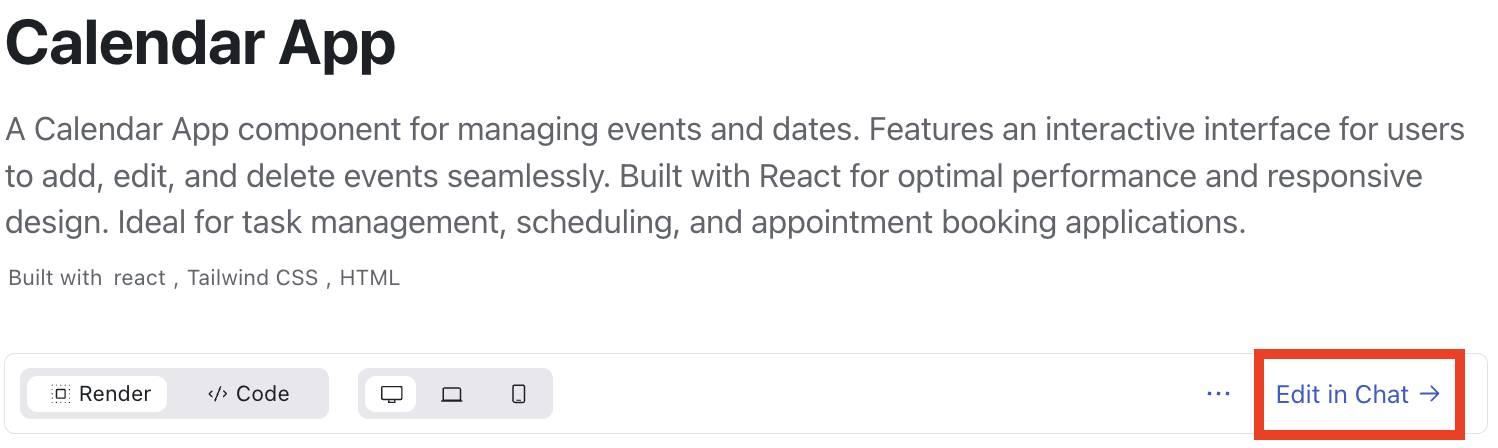 This creates a new design preloaded with the selected project, ready for you to customize and build upon.